
User Registration Instructions
To access the journal system and use its functionalities (submitting papers, reviewing, editing your profile), it is necessary to register a user account. Registration is straightforward and takes just a few minutes.
The portal is bilingual (Croatian/English), so you can register and log in in the language that suits you best.
Registration
Step 1: Open the registration page
- Visit the journal’s website.
- In the top right corner, select “Login” or “Prijava”.
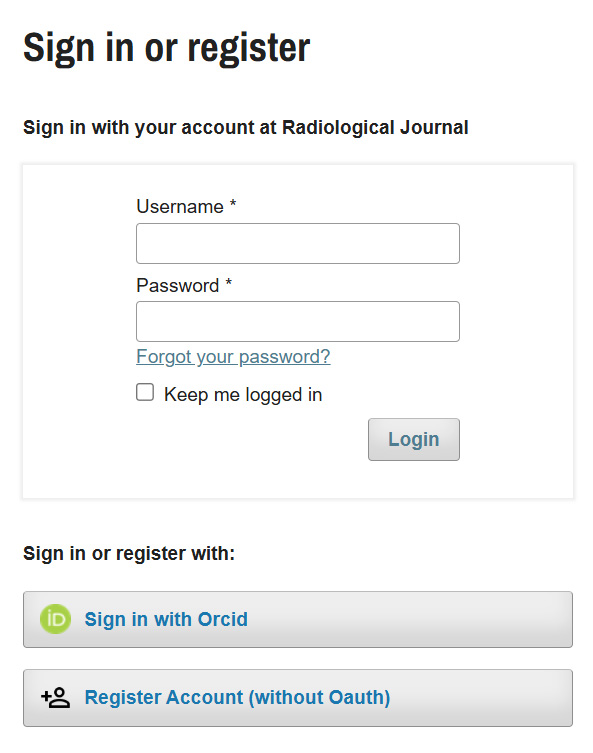
Step 2: Sign in or register
- Choose Register account (without OAuth)
- Enter data in the language you have selected. If you choose Croatian, use diacritical marks (čćžšđ) and enter the institution’s name in Croatian. For English, use non-diacritic characters (cczsd) and the institution’s name in English.
The registration form requires you to complete the following fields:
- Name and surname
- Username – used to log into the system. You can also log in using your e-mail address.
- Institution – indicate the full name of the institution, its headquarters and country.
- Password and repeat password
- E‑mail address – must be valid, as you will receive a registration confirmation at this address
- Consent for collecting personal data – to register, you must give consent and be familiar with the Privacy Statement and how and for what purpose we use and store your personal data
- Consent to receive notifications – not a requirement for registration
- ReCaptcha – test to confirm you’re human
Step 3: Update your details
In the top right corner, click the icon with your initials and select Update Profile.
Identity
- All data should be written bilingually. Fields not completed bilingually are marked with a red country icon.
- Enter your full name with all academic and other titles, as this is how your name will appear in the journal, e.g.: Dr. sc. Hrvoje Horvat, dr. med.
- Avatar letters – not necessary, if left blank your initials will appear
- ORCID – link to create or connect to an ORCID (Open Researcher and Contributor ID) account.
- Save updates for each tab (Identity, Contact, Role, etc.), as moving to another tab may result in the loss of unsaved changes.
Contact
- E-mail address – Your e-mail address for all notifications. It is possible to change the address. In that case, we will send you an e-mail with a confirmation link for the change.
- Signature – you can enter your “signature”, i.e. details that will appear at the foot of your messages sent within the system
- Telephone – not required. This information is not made public but is visible only to editors and the journal administrator.
- Institution – must be entered in both languages
- Address – optional. If entering, please use the following format:
- Street and house number
- Postcode, City/Town
- Country
- Communication languages – select the language so the editorial office knows which language to use when communicating with you
Roles
- Roles – choose your role. You can select reader and author.
- Reviewing interests – indicates your areas of expertise and topics you wish or are able to review. This is part of your user profile, used solely to better match reviewers with submitted manuscripts. The user (potential reviewer) enters key terms here that describe their scientific or professional fields.
Public data
- Profile picture – not used to save server space
- Biography statement – a brief biography
- User website URL – if you have your own website, you may enter it
Password
- Here you can update your password
Notifications
- Select the system events you wish to be notified about. Deselecting items means those events will not appear in your notifications feed.
API key
- Mainly used by administrators and advanced users. Ordinary authors and reviewers generally do not need it.
Notifications
- Here you can update your password
Notifications
- Select the system events you wish to be notified about. Deselecting items means those events will not appear in your notifications feed.
API key
- Mainly used by administrators and advanced users. Ordinary authors and reviewers generally do not need it.
API key
- Here you can update your password
Notifications
- Select the system events you wish to be notified about. Deselecting items means those events will not appear in your notifications feed.
API key
- Mainly used by administrators and advanced users. Ordinary authors and reviewers generally do not need it.
System login
After successful registration:
- Open the journal’s website.
- Click “Prijava” or “Login”.
- Enter your username and password.
Troubleshooting
If you are having issues with registration or login:
- check if you have entered the correct e‑mail address
- check the spam/junk folder for a confirmation message
- use the “Forgot your password?” option to reset your password
- contact the journal editorial office if the problem persists
 CART